Wednesday, January 19, 2011

Autoplay Video CD (VCD)

Content copied for preservation only. Original link: http://navasgroup.com/tech/autoplay_vcd.htm

HOW TO: Autoplay Video CD (VCD) in Windows

Copyright 2002 The Navas GroupSM, All Rights Reserved.
Permission is granted to copy for private non-commercial use only.Posted as <http://navasgroup.com/tech/autoplay_vcd.htm>.  Updated: Tuesday, September 14, 2010.
GENERAL NOTES:
  • This information was compiled by the author and is provided as a public service. The author is not responsible for any errors or omissions, or for any consequential problems that might result. USE AT YOUR OWN RISK.
  • Email comments and suggestions to John Navas

Introduction

A pure Video CD (VCD) will not Autoplay (automatically play the video on an inserted disc) in Microsoft Windows without some sort of "helper" application. Although there are several ways to create a Video CD that will Autoplay without a "helper" application, the following procedure, based on Windows Media Player, is arguably the simplest, easiest, and cleanest.

Requirements (player computer):

  1. Windows Media Player (6.4 or above; 7 or above recommended).
  2. Windows Me, Windows 2000, Windows XP (or later), or earlier versions of Windows with Internet Explorer 5 (or above).

Method

  • Use an .ASX Windows Media Metafile (named VCD.ASX in this document, but any valid filename could be used) to control Windows Media Player.
  • Use an AUTORUN.INF file to automatically launch the .ASX Windows Media Metafile.
Both of these two files must be placed in the root directory of the Video CD, as described below. They should not interfere with playing the Video CD on a Video CD or DVD player.

AUTORUN.INF

The contents of the AUTORUN.INF text file are always (assuming the .ASX file is named VCD.ASX):

Method 1Comments
[autorun]
ShellExecute=VCD.ASX
The 2nd line (ShellExecute) uses the registered .ASX file association to process the .ASX Windows Media Metafile. The registered application is usually (but not necessarily) the current version of Windows Media Player; if so, playback begins in a default window. Method 1 is preferred unless you want playback to begin full screen, in which case use Method 2.
Method 2Comments
[autorun]
ShellExecute=mplayer2 /fullscreen VCD.ASX
Method 2 is used to begin playback full screen. It should explicitly invoke the older version (6.4) of Windows Media Player, which (unlike the latest version) supports the "/fullscreen" parameter. The older version apparently remains installed even when the newer version is installed (on Windows XP at least).

.ASX file

The .ASX file contains text commands that allow you to control Windows Media Player. Simple examples:

Play single video clipComments


  • The first Title line (with "Name of my Video CD" as an example) is optional; if present, Windows Media Player will display your framed text as a title for the entire Video CD.
  • The lines from  to  play a single clip; repeat those lines if there are additional clips to be played, as in the 2nd example.
  • The Title line in a given Entry ("My Video Clip #1" and "My Video Clip #2" in the examples) is also optional; if present, Windows Media Player will display your framed text as a title for the clip.
  • The Ref line tells Windows Media Player where to find the clip. When a Video CD is created, your clip(s) will placed in the "MPEGAV" root folder (directory) on the CD. The particular clip names depend on the CD authoring software you use; the example above is for ahead Nero Burning ROM (highly recommended for Video as well as other types of CDs and now DVDs). The file extension is usually .DAT, rather than (say) .MPG, but Windows Media Player will still recognize the format and play the file (if the correct codec is installed).
  • For complete documentation on Windows Media Metafiles, see the Windows Media Player SDK.
Play two video clips


Creating the Video CD

Getting the .ASX Windows Media Metafile and the AUTORUN.INF file into the root directory of a Video CD can be easy or hard depending on the CD authoring software you use. In Nero Burning ROM (version 5) it's easy: after a Video CD compilation (layout) has been created, use the clip names in the "MPEGAV" folder (directory) to create the .ASX file, drag and drop the .ASX and AUTORUN.INF files into the upper right pane of the compilation window (set to "\" root), and then burn.

Related Links

Volumouse - Control PC volume with mouse

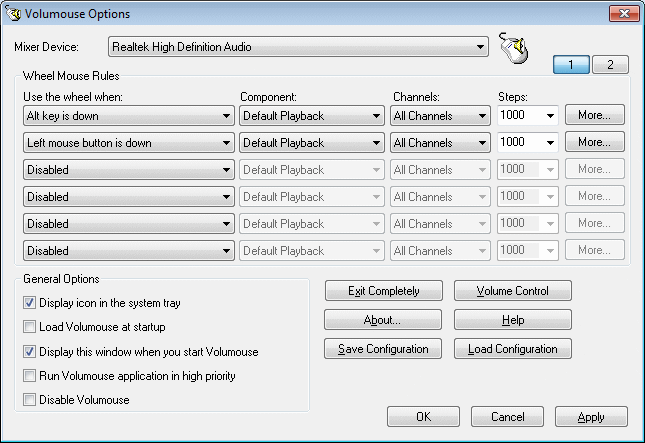
Volumouse is a FREE, quick and easy way to control the sound volume with your mouse wheel on the fly. It allows you to bind volume control to your mouse using all kinds of conditional rules for determining when the wheel will be used to control volume.

Some machines do not have a keyboard volume control which makes you have to find your "volume control" icon in the task bar, double click, then adjust. Not ideal. Also, some laptops make it difficult by making you hold down a FN key on one side and arrow keys on the other side... makes one hand, quick volume control tedious. Thanks NirSoft!

http://www.nirsoft.net/utils/volumouse.html

Saturday, January 8, 2011

Open Source FREE software

Just wanted to share some open source FREE software in case you haven't heard of them and don't want to pay for increasingly expensive and bloated Adobe Photoshop, Illustrator, microsoft Office packages.

Instead of Photoshop, try:
GiMP:  GIMP is an acronym for GNU Image Manipulation Program. It is a freely distributed program for such tasks as photo retouching, image composition and image authoring.
http://www.gimp.org/

Instead of Illustrator or Corel Draw, try:
InkScape:  An Open Source vector graphics editor, with capabilities similar to Illustrator, CorelDraw, or Xara X, using the W3C standard Scalable Vector Graphics (SVG) file format. 
http://www.inkscape.org

Instead of Microsoft office, try:
OpenOffice.org: OpenOffice.org 3 is the leading open-source office software suite for word processing, spreadsheets, presentations, graphics, databases and more. It is available in many languages and works on all common computers. It stores all your data in an international open standard format and can also read and write files from other common office software packages. It can be downloaded and used completely free of charge for any purpose. 
- some other alternatives:
1.  http://sixrevisions.com/graphics-design/10-excellent-open-source-and-free-alternatives-to-photoshop/
2. http://www.artweaver.de/home-en/
3. http://garmahis.com/software/illustrator-free-alternatives/

Nothing can completely replace such feature rich pay products as the industry standards but for most users these alternatives are great for home and even functional for commercial use. For more info on Open Source Software, go here: 
http://sourceforge.net/about and here: http://opensource.org/

Wednesday, March 17, 2010

Xref Fade Control

This was troublesome to someone in the office. Thanks to the Mad Cadder for this solution. Sometimes, AutoCrap seems to flip a few switches on its on. How does that happen??

Original content from "The Mad Cadder" - copied below:


I am not sure if this is a new features for AutoCAD 2009 or 2010, but the solution is the same. When an xref is inserted in the drawing the colours appear faded. It looks like it is in a permanent "in-place edit block" mode but it is not.

I actually like this new feature because it allows for visual recognition of line work and a distinction between an xref and objects drawn.

To control the intensity of the fade or remove the fading use the following steps:In AutoCAD, open the OPTIONS dialogue box. Choose the DISPLAY tab. Located at the bottom-right of the dialogue box, there is a section called "Fade Control". Adjust the slide bar labeled "Xref display" to control the intensity of the Xref fade.


Thursday, January 7, 2010

Google Wave - The wave of the Future?


Heard of it yet?
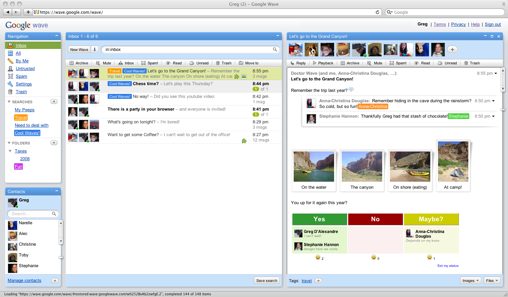
Google Wave is an online tool for real-time communication and collaboration. A wave can be both a conversation
and a document where people can discuss and work together using richly formatted text, photos, videos, maps, and more.

At this point, it may take a while to get an invitation to use this early version of Wave. The links below are some articles for more info. as well as the official google page where you can ask for an INVITATION to be a user.


Thursday, December 17, 2009

Zoom IN / OUT in a Web Browser.

Just in case you didn't already know, when using almost any web browser these days you can zoom in or out to view the web page larger or smaller. Try it in Explorer, FireFox, Chrome, Opera, etc.

Using the Mouse:
If you have a mouse with a wheel hold down the CTRL key, and then scroll the wheel to zoom in or out.

Using the Keyboard:

From the keyboard you can increase or decrease the zoom value in 10% increments.
To zoom in, press:  CTRL+PLUS SIGN (+).
To zoom out, press:  CTRL+MINUS SIGN (-).
To restore to 100%, press:  CTRL+0.